> ## Documentation Index
> Fetch the complete documentation index at: https://cubed3-igor-cub-2478-table-docs-reconcile.mintlify.site/llms.txt
> Use this file to discover all available pages before exploring further.
# dbt Integration
> Pull dbt models into Cube and convert them into cubes automatically — manually, from your CI/CD pipeline, or on every push to your dbt repository.
Available on [Premium and above plans](https://cube.dev/pricing).
If your team already models data in [dbt](https://www.getdbt.com/), you can import
those models into Cube as cubes instead of redefining them by hand. **dbt pull**
connects to your dbt project's Git repository, parses the project, converts each dbt
model into a cube — including dimensions, measures, descriptions, and joins — and
commits the generated files to a branch where you review them before they reach
production.
Pulls can run manually, from your CI/CD pipeline, or automatically on every push to
your dbt repository — so your semantic layer stays in sync with dbt as it evolves.
The integration is one-directional: **dbt → Cube**. Cube never writes back to your
dbt project. dbt stays the source of truth for how tables are transformed; Cube
serves those models to BI tools, APIs, and AI agents.
## How it works
When a pull runs — whether triggered manually, from CI, or by a repository push —
Cube spins up a short-lived, isolated sandbox and:
1. **Clones your dbt repository** (a shallow clone of the branch you selected).
2. **Installs your project's dependencies** (`dbt deps`).
3. **Parses the project** (`dbt parse`) to produce dbt's `manifest.json` — the
structured description of every model, column, test, and constraint.
4. **Converts each dbt model into a cube definition** (one `.yml` file per model).
5. **Commits the generated files** to a branch for review, then tears the sandbox
down.
**No connection to your data warehouse is made during a pull.** Cube uses
`dbt parse`, not `dbt run` or `dbt compile`, so it reads your project's structure
without ever querying your warehouse. dbt pull generates cube definitions; it assumes
the underlying tables were already built by your own production `dbt run`.
## Prerequisites
* **A supported data warehouse.** dbt pull supports **Snowflake**,
**Amazon Redshift**, **PostgreSQL**, **Google BigQuery**, **Databricks**, and
**Amazon Athena**. If your deployment uses any other database type, the pull
dialog will tell you it's unsupported.
* **A Git repository** containing your dbt project, reachable over **HTTPS** or
**SSH**. GitHub, GitLab, Bitbucket, Azure DevOps, and self-hosted Git servers all
work.
* **Read access to that repository** — either a personal access token (PAT) for
HTTPS, or the ability to register a read-only deploy key for SSH.
* For the generated cubes to return data, the dbt models must already be **built into
your warehouse** (via your normal production `dbt run`) in the schema you configure
below. dbt pull generates cube definitions that point at `schema.`; it does
not create the underlying tables.
## Connect your dbt repository
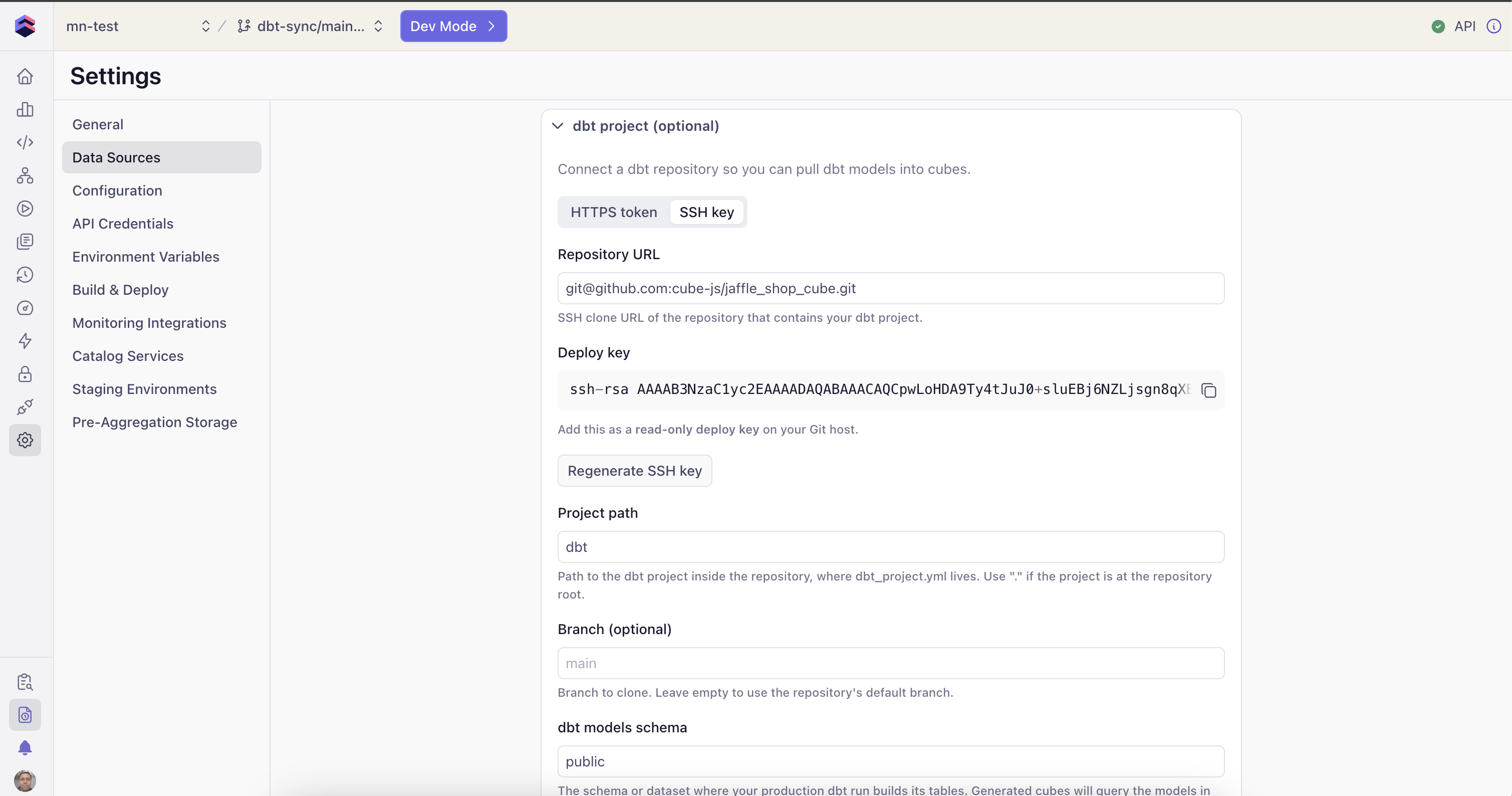
The dbt connection is configured on your deployment's **default data source**.
Go to **Settings → Data Sources** and **edit** the default data source.
Expand the **dbt project** section.
| Field | Description |
| --------------------- | ------------------------------------------------------------------------------------------------------------------------------------------------------ |
| **Repository URL** | The clone URL of the repo that contains your dbt project, e.g. `https://github.com/your-org/your-repo.git` or `git@github.com:your-org/your-repo.git`. |
| **Project path** | The path to the dbt project inside the repository (the folder containing `dbt_project.yml`). Use `.` if the project is at the repository root. |
| **Branch** | The branch of the dbt repository to sync. Defaults to the repository's default branch. |
| **dbt models schema** | The schema or dataset where your production dbt run builds its tables. Generated cubes will query the models in this schema. |
Two authentication methods are supported:
* **HTTPS + personal access token** — paste a PAT with read access to the
repository. Leave it unchanged on later edits to reuse the existing token.
* **SSH deploy key** — Cube generates a key pair for you and shows you the
**public** key to register as a read-only deploy key on your Git host. The
private key is generated and stored server-side and never leaves Cube.
Whichever method you use, the secret is stored encrypted and resolved server-side
at pull time — your Git credentials never reach the browser.
 Click **Test connection**. Cube checks that the repository is reachable with your
URL and credentials and reports the result:
* **"Repository is reachable"** — you're good to save.
* An error message identifying the problem (invalid/expired token, repository not
found, host unreachable, not a Git URL, etc.).
Click **Save dbt settings**.
Saving these settings does not restart your deployment.
## Configure pull settings
Pull options are saved on the integration itself, so every pull — manual or
automated — uses the same configuration:
| Option | Default | Description |
| ---------------------------- | ------------------ | ---------------------------------------------------------------------------------------------------------------------------------------------------- |
| **Output path** | `/model/cubes/dbt` | Directory in the repository where the generated cube files are written. This folder is replaced on each pull. |
| **Name prefix** | `dbt_` | Prefix added to each generated cube's name. |
| **Title prefix** | `(dbt) ` | Prefix added to each generated cube's display title. |
| **Model selector** | *(empty)* | Optional dbt selector using `dbt ls --select` syntax to limit which models are pulled, e.g. `tag:cube` or `marts.*`. Leave empty to pull all models. |
| **Only pull marts** | Off | When enabled, only pulls models whose path starts with the **Marts folder** value (e.g. `marts`). |
| **Auto-detect primary keys** | On | Marks `id` / `*_id` columns (and columns with a dbt `primary_key` constraint) as the cube's primary key. |
| **Add default measures** | On | Adds a `count` measure to every cube, and `sum` measures for additive numeric columns. |
| **Include descriptions** | On | Carries dbt model and column descriptions into cubes and dimensions. |
| **Generate joins** | On | Infers joins between cubes from dbt `relationships` tests and foreign-key constraints. |
## Run a pull manually
Open the deployment's **data model** page (the IDE) and enter **development mode**.
The dbt integration is disabled outside dev mode — a manual pull lands on your dev
branch, never directly on production.
Open the **Integrations** menu → **dbt** → **Pull**. The dialog shows what will be
pulled using your saved settings.
If the output path already contains files, the dialog shows a warning with the file
count: a pull **overwrites** generated cube files and **deletes** files in that folder
that no longer correspond to a dbt model. See
[Re-running a pull](#re-running-a-pull).
Click **Start Pull**. A progress toast tracks the pull and ends with
**"dbt pull completed (N cubes)"**. The generated files appear in your file tree
under the output path, on your development branch.
Review the generated cubes in the **Changes** view, then commit and merge the branch
through your normal workflow.
## Keep Cube in sync automatically
Automated syncs run the same pipeline as a manual pull, but instead of committing to
your working branch they **create a fresh review branch** — so a person can approve
the update before it reaches the live data model.
### Trigger from your CI/CD pipeline
Cube exposes a REST endpoint you can call at the end of your dbt deployment pipeline,
right after `dbt run`. As soon as your warehouse tables are rebuilt, your pipeline
tells Cube to regenerate the matching cubes. The exact endpoint URL for your
deployment is shown in the dbt settings card, ready to drop into a CI step.
Click **Test connection**. Cube checks that the repository is reachable with your
URL and credentials and reports the result:
* **"Repository is reachable"** — you're good to save.
* An error message identifying the problem (invalid/expired token, repository not
found, host unreachable, not a Git URL, etc.).
Click **Save dbt settings**.
Saving these settings does not restart your deployment.
## Configure pull settings
Pull options are saved on the integration itself, so every pull — manual or
automated — uses the same configuration:
| Option | Default | Description |
| ---------------------------- | ------------------ | ---------------------------------------------------------------------------------------------------------------------------------------------------- |
| **Output path** | `/model/cubes/dbt` | Directory in the repository where the generated cube files are written. This folder is replaced on each pull. |
| **Name prefix** | `dbt_` | Prefix added to each generated cube's name. |
| **Title prefix** | `(dbt) ` | Prefix added to each generated cube's display title. |
| **Model selector** | *(empty)* | Optional dbt selector using `dbt ls --select` syntax to limit which models are pulled, e.g. `tag:cube` or `marts.*`. Leave empty to pull all models. |
| **Only pull marts** | Off | When enabled, only pulls models whose path starts with the **Marts folder** value (e.g. `marts`). |
| **Auto-detect primary keys** | On | Marks `id` / `*_id` columns (and columns with a dbt `primary_key` constraint) as the cube's primary key. |
| **Add default measures** | On | Adds a `count` measure to every cube, and `sum` measures for additive numeric columns. |
| **Include descriptions** | On | Carries dbt model and column descriptions into cubes and dimensions. |
| **Generate joins** | On | Infers joins between cubes from dbt `relationships` tests and foreign-key constraints. |
## Run a pull manually
Open the deployment's **data model** page (the IDE) and enter **development mode**.
The dbt integration is disabled outside dev mode — a manual pull lands on your dev
branch, never directly on production.
Open the **Integrations** menu → **dbt** → **Pull**. The dialog shows what will be
pulled using your saved settings.
If the output path already contains files, the dialog shows a warning with the file
count: a pull **overwrites** generated cube files and **deletes** files in that folder
that no longer correspond to a dbt model. See
[Re-running a pull](#re-running-a-pull).
Click **Start Pull**. A progress toast tracks the pull and ends with
**"dbt pull completed (N cubes)"**. The generated files appear in your file tree
under the output path, on your development branch.
Review the generated cubes in the **Changes** view, then commit and merge the branch
through your normal workflow.
## Keep Cube in sync automatically
Automated syncs run the same pipeline as a manual pull, but instead of committing to
your working branch they **create a fresh review branch** — so a person can approve
the update before it reaches the live data model.
### Trigger from your CI/CD pipeline
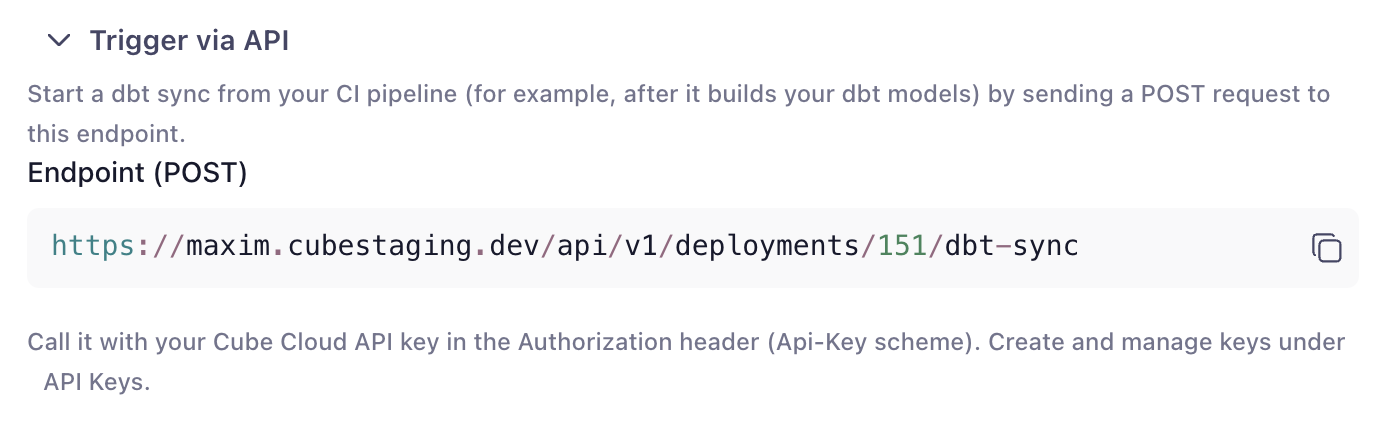
Cube exposes a REST endpoint you can call at the end of your dbt deployment pipeline,
right after `dbt run`. As soon as your warehouse tables are rebuilt, your pipeline
tells Cube to regenerate the matching cubes. The exact endpoint URL for your
deployment is shown in the dbt settings card, ready to drop into a CI step.
 ### Trigger on every push
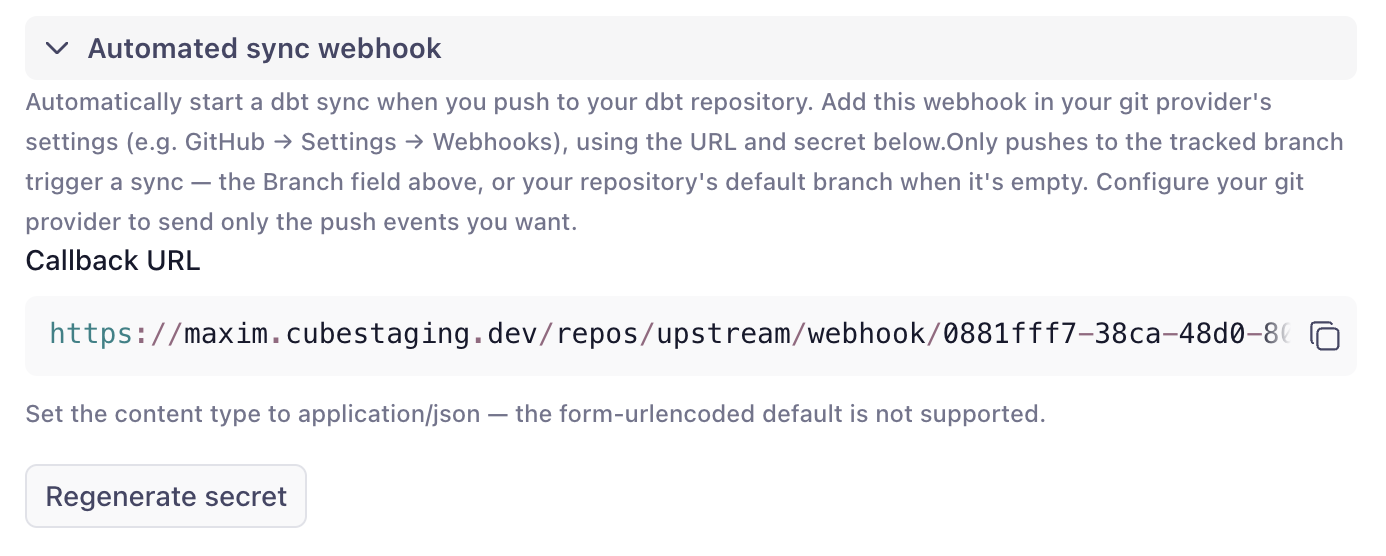
Register a webhook on your dbt repository so Cube syncs automatically whenever the
tracked branch is updated. In the settings card, generate a signing secret and copy
the callback URL into your Git host's webhook settings. Pushes are verified by
signature, de-duplicated (redeliveries and no-op ref changes are ignored), and scoped
to the branch you're syncing.
### Trigger on every push
Register a webhook on your dbt repository so Cube syncs automatically whenever the
tracked branch is updated. In the settings card, generate a signing secret and copy
the callback URL into your Git host's webhook settings. Pushes are verified by
signature, de-duplicated (redeliveries and no-op ref changes are ignored), and scoped
to the branch you're syncing.
 ### Review notifications
When an automated sync produces a branch that's ready to review, Cube emails the
recipients you configure — a comma-separated list in the settings card — with a link
straight to the review. No one has to poll the UI to notice that dbt changed.
## What gets generated
dbt pull converts **models, their columns, and their relationships**. dbt
**metrics and semantic models are not imported.**
For each dbt model in your project:
* **One cube** is created (one `.yml` file per model), named
`` with title `<model alias or name>`.
* **`sql_table`** is set to the model's fully-qualified relation,
`database.schema.model` (empty parts are dropped, so e.g. Postgres and Athena
yield `schema.model`). On Databricks, the first segment is the catalog: the
value of the deployment's `CUBEJS_DB_DATABRICKS_CATALOG` environment variable,
or `hive_metastore` if it isn't set.
* **Each column becomes a dimension.** The dimension type is inferred from the
column's `data_type` where available, otherwise from the column name:
| dbt `data_type` | Cube dimension type |
| --------------------------------------------------------------------------------------- | ------------------- |
| `varchar`, `text`, `string`, `char` | `string` |
| `integer`, `int`, `bigint`, `smallint`, `decimal`, `numeric`, `float`, `double`, `real` | `number` |
| `date`, `datetime`, `timestamp`, `timestamptz`, `time` | `time` |
| `boolean`, `bool` | `boolean` |
* **Model and column descriptions** from your dbt project are carried over to the
cubes and dimensions.
* **A `count` measure** is added to every cube.
* **`total_<column>` sum measures** are added for numeric columns whose names suggest
an additive metric (names containing `amount`, `price`, `cost`, `total`, or `value`).
* **Primary keys** are detected from `id` / `*_id` columns and dbt `primary_key`
constraints, and the matching dimensions are marked `primary_key`.
* **Joins between cubes** are generated from dbt `relationships` tests and
foreign-key constraints, with the relationship type (`many_to_one`,
`one_to_many`, or `one_to_one`) inferred from the models — so the generated data
model is queryable across cubes out of the box.
Models named `metricflow_time_spine` and any non-model resources (sources, seeds,
snapshots, etc.) are skipped.
Each generated file begins with a header noting that it's auto-generated and
recommending you don't edit it by hand — see
[Build on top of the generated cubes](#build-on-top-of-the-generated-cubes) for
how to customize them instead.
## Build on top of the generated cubes
Think of the resulting data model as **layered**. The generated cubes are the base
layer, not the finished semantic layer:
* **The base layer** — the cubes in the output path — is owned by the integration.
It mirrors your dbt project and is regenerated on every pull, so treat it as
read-only: any manual edits to these files are lost on the next sync.
* **The customization layer** is everything you build on top: hand-written cubes
that [`extends`](/reference/data-modeling/cube#extends) the generated ones, and
[views](/reference/data-modeling/view) that shape what's exposed to consumers.
This layer lives outside the output path and survives every pull.
Because `extends` merges your definitions into the generated cube, you can add
measures, joins, segments, pre-aggregations, or access control without touching
the generated files:
```yaml theme={null}
cubes:
- name: orders
extends: dbt_orders
measures:
- name: average_order_value
sql: amount
type: avg
```
When your dbt project changes — a column is added, a description is updated — the
next pull refreshes the base layer, and your customizations automatically apply on
top of the updated cubes. dbt stays the source of truth for the physical model,
while the semantics you add in Cube accumulate in a layer the sync never touches.
## Re-running a pull
Pulling again refreshes the cubes to match your current dbt project:
* Files for models that **still exist** in dbt are **overwritten** with freshly
generated definitions.
* Files in the output path whose models are **no longer in the dbt project** are
**deleted**.
* Files in the output path that correspond to a model **still present** in dbt are
preserved — so a scoped pull (using a model selector or "Only pull marts") will
**not** delete the cubes for models outside that scope.
<Warning>
Because generated files are overwritten, manual edits to them are lost on the next
pull. Keep customizations in a separate cube that `extends` the generated one — see
[Build on top of the generated cubes](#build-on-top-of-the-generated-cubes).
</Warning>
## Limitations
* **Supported warehouses:** Snowflake, Amazon Redshift, PostgreSQL, Google
BigQuery, Databricks, and Amazon Athena.
* **Imports models, columns, and relationships only** — not dbt metrics, semantic
models, tests, or exposures.
* **One-directional** — Cube never pushes anything back to your dbt repository.
* **No warehouse connection** — a pull doesn't trigger a `dbt run`; it assumes your
tables are already built.
* **One dbt project per deployment.**
## Troubleshooting
<AccordionGroup>
<Accordion title="The dbt menu item is greyed out">
You're not in development mode. Enter dev mode on the data model page — a manual
pull only runs against a dev branch.
</Accordion>
<Accordion title="The pull dialog says the database type is unsupported">
Your deployment uses a database other than Snowflake, Amazon Redshift, PostgreSQL,
Google BigQuery, Databricks, or Amazon Athena. dbt pull isn't available for it.
</Accordion>
<Accordion title="The pull dialog says dbt isn't configured">
The dbt connection settings are missing or incomplete on the default data source. An
account administrator can add them under **Settings → Data Sources** (see
[Connect your dbt repository](#connect-your-dbt-repository)). If you're not an
administrator, ask someone who manages the deployment to set it up.
</Accordion>
<Accordion title="Test connection fails">
The message identifies the cause:
* *Authentication failed* — the token is invalid, expired, or lacks read access to
the repository (for HTTPS), or the deploy key isn't registered on the repository
(for SSH). Generate a new read-scoped token, or register the public deploy key
shown in the settings card.
* *Repository not found* — check the URL; for private repos this can also mean the
credential can't see the repo.
* *Unsupported protocol* — use the repository's HTTPS or SSH clone URL.
* *Host unreachable / could not resolve host* — check the URL; the host must be
reachable over the public internet.
</Accordion>
<Accordion title="A pull fails partway through">
The error message describes what failed. Common causes:
* The dbt project doesn't exist at the configured **Project path** (no
`dbt_project.yml` there).
* A failure in the dbt project itself — the same failure you'd see running dbt
locally.
Transient failures are retried automatically; persistent errors fail with a message
describing the problem.
</Accordion>
<Accordion title="The pull reports "no dbt models matched"">
Your **Model selector** and/or **Only pull marts** filters excluded every model. The
pull fails (rather than generating nothing and deleting files) and names the active
filters. Adjust the selector/marts folder and try again. Confirm the selector with
`dbt ls --select <your selector>` locally.
</Accordion>
<Accordion title="A webhook push doesn't trigger a sync">
Check that:
* The webhook is registered on the **dbt repository** with the callback URL and
signing secret from the settings card.
* The push targets the **branch** configured in the dbt settings — pushes to other
branches are ignored.
* The delivery isn't a redelivery or a no-op ref change — those are de-duplicated
and skipped.
</Accordion>
<Accordion title="The pull succeeded but Playground returns no data">
dbt pull generates cube definitions that point at `schema.<model>`, but it doesn't
build the tables. Make sure your production `dbt run` has materialized the models
into the **dbt models schema** you configured, and that the schema matches.
</Accordion>
<Accordion title="A generated cube points at the wrong table or schema">
The `sql_table` is derived from your dbt project and the **dbt models schema**
setting. Verify that **dbt models schema** matches where your models actually land,
and that any per-model schema/database overrides in dbt are what you expect.
On Databricks, the catalog segment comes from the deployment's
`CUBEJS_DB_DATABRICKS_CATALOG` environment variable and defaults to
`hive_metastore`. If your models live in a Unity Catalog catalog, set
`CUBEJS_DB_DATABRICKS_CATALOG` to that catalog so generated cubes point at it.
</Accordion>
</AccordionGroup>
### Review notifications
When an automated sync produces a branch that's ready to review, Cube emails the
recipients you configure — a comma-separated list in the settings card — with a link
straight to the review. No one has to poll the UI to notice that dbt changed.
## What gets generated
dbt pull converts **models, their columns, and their relationships**. dbt
**metrics and semantic models are not imported.**
For each dbt model in your project:
* **One cube** is created (one `.yml` file per model), named
`` with title `<model alias or name>`.
* **`sql_table`** is set to the model's fully-qualified relation,
`database.schema.model` (empty parts are dropped, so e.g. Postgres and Athena
yield `schema.model`). On Databricks, the first segment is the catalog: the
value of the deployment's `CUBEJS_DB_DATABRICKS_CATALOG` environment variable,
or `hive_metastore` if it isn't set.
* **Each column becomes a dimension.** The dimension type is inferred from the
column's `data_type` where available, otherwise from the column name:
| dbt `data_type` | Cube dimension type |
| --------------------------------------------------------------------------------------- | ------------------- |
| `varchar`, `text`, `string`, `char` | `string` |
| `integer`, `int`, `bigint`, `smallint`, `decimal`, `numeric`, `float`, `double`, `real` | `number` |
| `date`, `datetime`, `timestamp`, `timestamptz`, `time` | `time` |
| `boolean`, `bool` | `boolean` |
* **Model and column descriptions** from your dbt project are carried over to the
cubes and dimensions.
* **A `count` measure** is added to every cube.
* **`total_<column>` sum measures** are added for numeric columns whose names suggest
an additive metric (names containing `amount`, `price`, `cost`, `total`, or `value`).
* **Primary keys** are detected from `id` / `*_id` columns and dbt `primary_key`
constraints, and the matching dimensions are marked `primary_key`.
* **Joins between cubes** are generated from dbt `relationships` tests and
foreign-key constraints, with the relationship type (`many_to_one`,
`one_to_many`, or `one_to_one`) inferred from the models — so the generated data
model is queryable across cubes out of the box.
Models named `metricflow_time_spine` and any non-model resources (sources, seeds,
snapshots, etc.) are skipped.
Each generated file begins with a header noting that it's auto-generated and
recommending you don't edit it by hand — see
[Build on top of the generated cubes](#build-on-top-of-the-generated-cubes) for
how to customize them instead.
## Build on top of the generated cubes
Think of the resulting data model as **layered**. The generated cubes are the base
layer, not the finished semantic layer:
* **The base layer** — the cubes in the output path — is owned by the integration.
It mirrors your dbt project and is regenerated on every pull, so treat it as
read-only: any manual edits to these files are lost on the next sync.
* **The customization layer** is everything you build on top: hand-written cubes
that [`extends`](/reference/data-modeling/cube#extends) the generated ones, and
[views](/reference/data-modeling/view) that shape what's exposed to consumers.
This layer lives outside the output path and survives every pull.
Because `extends` merges your definitions into the generated cube, you can add
measures, joins, segments, pre-aggregations, or access control without touching
the generated files:
```yaml theme={null}
cubes:
- name: orders
extends: dbt_orders
measures:
- name: average_order_value
sql: amount
type: avg
```
When your dbt project changes — a column is added, a description is updated — the
next pull refreshes the base layer, and your customizations automatically apply on
top of the updated cubes. dbt stays the source of truth for the physical model,
while the semantics you add in Cube accumulate in a layer the sync never touches.
## Re-running a pull
Pulling again refreshes the cubes to match your current dbt project:
* Files for models that **still exist** in dbt are **overwritten** with freshly
generated definitions.
* Files in the output path whose models are **no longer in the dbt project** are
**deleted**.
* Files in the output path that correspond to a model **still present** in dbt are
preserved — so a scoped pull (using a model selector or "Only pull marts") will
**not** delete the cubes for models outside that scope.
<Warning>
Because generated files are overwritten, manual edits to them are lost on the next
pull. Keep customizations in a separate cube that `extends` the generated one — see
[Build on top of the generated cubes](#build-on-top-of-the-generated-cubes).
</Warning>
## Limitations
* **Supported warehouses:** Snowflake, Amazon Redshift, PostgreSQL, Google
BigQuery, Databricks, and Amazon Athena.
* **Imports models, columns, and relationships only** — not dbt metrics, semantic
models, tests, or exposures.
* **One-directional** — Cube never pushes anything back to your dbt repository.
* **No warehouse connection** — a pull doesn't trigger a `dbt run`; it assumes your
tables are already built.
* **One dbt project per deployment.**
## Troubleshooting
<AccordionGroup>
<Accordion title="The dbt menu item is greyed out">
You're not in development mode. Enter dev mode on the data model page — a manual
pull only runs against a dev branch.
</Accordion>
<Accordion title="The pull dialog says the database type is unsupported">
Your deployment uses a database other than Snowflake, Amazon Redshift, PostgreSQL,
Google BigQuery, Databricks, or Amazon Athena. dbt pull isn't available for it.
</Accordion>
<Accordion title="The pull dialog says dbt isn't configured">
The dbt connection settings are missing or incomplete on the default data source. An
account administrator can add them under **Settings → Data Sources** (see
[Connect your dbt repository](#connect-your-dbt-repository)). If you're not an
administrator, ask someone who manages the deployment to set it up.
</Accordion>
<Accordion title="Test connection fails">
The message identifies the cause:
* *Authentication failed* — the token is invalid, expired, or lacks read access to
the repository (for HTTPS), or the deploy key isn't registered on the repository
(for SSH). Generate a new read-scoped token, or register the public deploy key
shown in the settings card.
* *Repository not found* — check the URL; for private repos this can also mean the
credential can't see the repo.
* *Unsupported protocol* — use the repository's HTTPS or SSH clone URL.
* *Host unreachable / could not resolve host* — check the URL; the host must be
reachable over the public internet.
</Accordion>
<Accordion title="A pull fails partway through">
The error message describes what failed. Common causes:
* The dbt project doesn't exist at the configured **Project path** (no
`dbt_project.yml` there).
* A failure in the dbt project itself — the same failure you'd see running dbt
locally.
Transient failures are retried automatically; persistent errors fail with a message
describing the problem.
</Accordion>
<Accordion title="The pull reports "no dbt models matched"">
Your **Model selector** and/or **Only pull marts** filters excluded every model. The
pull fails (rather than generating nothing and deleting files) and names the active
filters. Adjust the selector/marts folder and try again. Confirm the selector with
`dbt ls --select <your selector>` locally.
</Accordion>
<Accordion title="A webhook push doesn't trigger a sync">
Check that:
* The webhook is registered on the **dbt repository** with the callback URL and
signing secret from the settings card.
* The push targets the **branch** configured in the dbt settings — pushes to other
branches are ignored.
* The delivery isn't a redelivery or a no-op ref change — those are de-duplicated
and skipped.
</Accordion>
<Accordion title="The pull succeeded but Playground returns no data">
dbt pull generates cube definitions that point at `schema.<model>`, but it doesn't
build the tables. Make sure your production `dbt run` has materialized the models
into the **dbt models schema** you configured, and that the schema matches.
</Accordion>
<Accordion title="A generated cube points at the wrong table or schema">
The `sql_table` is derived from your dbt project and the **dbt models schema**
setting. Verify that **dbt models schema** matches where your models actually land,
and that any per-model schema/database overrides in dbt are what you expect.
On Databricks, the catalog segment comes from the deployment's
`CUBEJS_DB_DATABRICKS_CATALOG` environment variable and defaults to
`hive_metastore`. If your models live in a Unity Catalog catalog, set
`CUBEJS_DB_DATABRICKS_CATALOG` to that catalog so generated cubes point at it.
</Accordion>
</AccordionGroup>